Pages

Saturday, December 31, 2011

How to Fix and Repair Internet Explorer 8..?

Step 1
Most of the time, the problem is with your antivirus or antispyware. In fact, incorrect settings in your antivirus and antispyware create problems not only with Internet Explorer but any browser or application requiring data transmission over a network. To check if they are the cause, turn them off. Close all open windows of Internet Explorer 8, and open a fresh one. Use this Internet Explorer window to browse ONLY secure sites. If it works fine, the problem is with your antivirus or antispyware software. You can isolate the problem by turning them off one at a time and seeing which one is causing problem. You may then fix it by updating or reinstalling the antivirus or antispyware program or even by replacing the one creating problem. But, if your Internet Explorer still causes problems, check out step 2.

Step 2
Add-ons or plug-ins are either added manually or are added with the installation of any application such as Adobe Acrobat Reader. Some are default. A corrupt add-in may also cause an Internet Explorer freeze. To check this, right click on the icon of Internet Explorer, and select the option Run without Add-ons. If Internet Explorer begins working properly, one or more of the add-ons are corrupt, and you should follow the method mentioned in the next paragraph to fix the issue. If it is not working properly even with add-ons disabled, you may proceed to step 3.
To locate the plug-in creating problem, start Internet Explorer normally again and disable all plug-ins (see the NOTE and Image in the first section). Enable each plug-in—one by one—after browsing for some time with each plug-in. You can isolate the plug-in causing the problem as Internet Explorer 8 hangs as soon as you enable the corrupt plug-in. Click on the Disable or Remove button after selecting the plug-in in the Manage Add-ons window to fix the problem.

Step 3
There is high possibility that one of the processes on your machine is conflicting with the functioning of Internet Explorer. To check this, you will have to test your Internet Explorer in a clean boot environment. The link also explains how to isolate the process interfering that causes Internet Explorer 8 to freeze. If your problem is not fixed, you will have to go for a reset as mentioned in the next step.

Step 4
Resetting Internet Explorer restores the browser to the state when it was first installed. The first section of the article Troubleshooting and Reinstalling Internet Explorer in Windows XP explains how to reset Internet Explorer 8. If the browser works fine after resetting Internet Explorer, your problem is fixed. Otherwise you will have to re-register all components of Internet Explorer 8. If the problem disappears after re-registering all components, you are done with troubleshooting Internet Explorer 8. If the Internet Explorer 8 freeze appears again, the final resort is to reinstall Internet Explorer 8.
A proper reinstall of Internet Explorer 8 should fix the problem when Internet Explorer 8 hangs frequently. If the problem still persists, you will need expert help. You may either call a local expert technician or contact the MS Help and Support Center to repair Internet Explorer 8.

Tip: An Internet Explorer 8 freeze may also occur when you open too many tabs. Try to keep the number of tabs in Internet Explorer to five or less. If you need more, it is better to open a new window of Internet Explorer instead of more tabs in the same window. Internet Explorer hangs even when you use several Internet Explorer tabs depending upon the machine and the number of active processes.
Also See: Check out Tips to Speed up Internet Explorer 8 and other IE8 problems.

How to  rectify - Internet Explorer 8 If it is Stopped..?

You can try to resolve these issues using the following steps :

Method 1:
Try to open Internet explorer in the no addons mode:
Click the Start/ORB button -> Type Internet Explorer -> In the programs list click on Internet Explorer (No-Addons)
If it works in the No addons mode then it could be an issue with Addons.
So try to run theInternet Explorer Add-on Fix It tool: http://go.microsoft.com/?linkid=9708413

Method 2:
Try to reset internet explorer settings
CickStart/ORB. Type the following command inSearch Programs and features box, then press ENTER:
inetcpl.cpl
The Internet Options dialog box appears.
Click the Advanced tab.
Under Reset Internet Explorer settings, click Reset. Then clickReset again.
When Internet Explorer finishes resetting the settings, click Close in the Reset Internet Explorer Settings dialog box.
Start Internet Explorer again.
Try to run ResetInternet Explorer Settings Fix It tool:http://go.microsoft.com/?linkid=9646978

Method 3:
Software Rendering
If resetting IE or No Add-ons mode does not resolve the issue for you then it could be a compatibility issue with the Graphics card.
To resolve this, Click Start, type the following command in the Start Search box, and then press ENTER: inetcpl.cpl
Under Internet Options, click the advanced tab. Under 'Accelerated Graphics', click on the checkbox next to 'Use software rendering instead of GPU rendering*'. Ensuring that it is checked, click on OK. Close Internet options.
Now open Internet Explorer. It should now work without any issues.

Additional Steps: Try these to clear corruption and repair/replace damaged/missing system files.
Run DiskCleanup - Start - All Programs - Accessories - System Tools - Disk Cleanup
Start - type in Search box -  COMMAND   find at top of list -  RIGHT CLICK  -  RUN AS ADMIN
sfc /scannow

If issue persist try uninstalling IE8


How to Rectify The IE 9 Crashing or Error Report...?

You can typically resolve these issues using the following steps in the given order.

Method 1: No Add-ons Mode

Click Start. Type in "iexplorer.exe -extoff" and press enter. This will open IE in No Add-ons mode. Check if the crashes or performance issues happy while on this mode.
If there are no issues when using this mode, you can use the addon manager to disable all unwanted add-ons.
To do this, follow these steps:
Open Internet Explorer 9. Click the tools button (wheel button at the right hand side corner), and then click Manage Add-ons. On the Show drop-down menu, select All add-ons to display all add-ons that are installed on the computer. Look for each item in the list, select the add-on, and then click Disable in the Information window.
When you have disabled all the items in this list, click OK.
Exit and then restart Internet Explorer.

Method 2: Reset Internet Explorer Settings.

To use the Reset Internet Explorer Settings feature from Control Panel, follow these steps:
Exit all programs, including Internet Explorer (if it is running).
Click Start, type the following command in the Start Search box, and then press
ENTER: inetcpl.cpl
The Internet Options dialog box appears.
Click the Advanced tab, Under Reset Internet Explorer settings, click Reset.
Then click Reset again. When Internet Explorer finishes resetting the settings, click Close in the Reset Internet Explorer Settings dialog box. Start Internet Explorer again.
Please note that running RIES (Reset Internet Explorer Settings) will reset all user-defined settings including those set by installed extensions, toolbars and other add-ons to IE Defaults. This includes all Security, Privacy and Zone settings. Also this will clear browsing history, delete all temporary Internet Files, cookies, form data and especially all stored passwords.
However, RIES does not clear Favorites or Subscribed Feeds.

Method 3: Software Rendering
If resetting IE or No Add-ons mode does not resolve the issue for you then it could be a compatibility issue with the Graphics card.
To resolve this, Click Start, type the following command in the Start Search box, and then press
ENTER: inetcpl.cpl
Under Internet Options, click the advanced tab. Under 'Accelerated Graphics', click on the checkbox next to 'Use software rendering instead of GPU rendering*'. Ensuring that it is checked, click on OK. Close Internet options.

Now open Internet Explorer 9. It should now work without any issues.
9 Most Common IE Bugs and How to Fix Them

9 Most Common IE Bugs and How to Fix Them

Internet Explorer – the bane of most web developers’ existence. Up to 60% of your development can be wasted just trying to squash out IE specific bugs which isn’t really a productive use of your time. In this tutorial, you are going to learn about the most common IE bugs and rendering disparities and how to easily squash them or deal with them. Interested? Let’s get started.


1. Centering a Layout

Centering an element is probably something every web developer has to do while creating a layout. The easiest and most versatile way to center an element is to just add margin: auto; to the relevant element. The above method will take care of centering the element irrespective of the resolution and/or browser width. IE 6 in quirks mode however decides to handle this in the most unfortunate way possible: by not handling it at all.
Consider the Following Code:
  1. #container{  
  2.     bordersolid 1px #000;  
  3.     background#777;  
  4.     width400px;  
  5.     height160px;  
  6.     margin30px 0 0 30px;  
  7. }  
  8.   
  9. #element{  
  10.     background#95CFEF;  
  11.     bordersolid 1px #36F;  
  12.     width300px;  
  13.     height100px;  
  14.     margin30px auto;  
  15.   
  16. }  
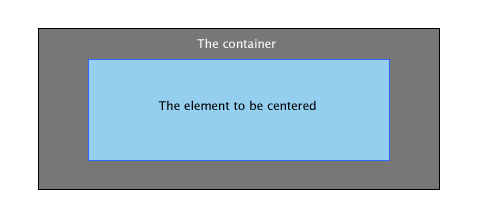
The output you’d expect:
Tutorial Image
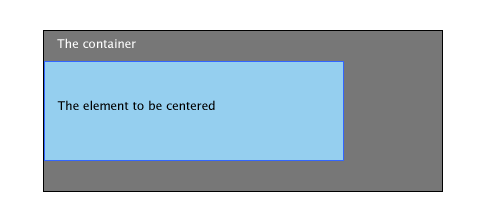
But what IE actually gives you:
Tutorial Image
This is mainly due to IE6 in quirks mode and below not recognizing the auto value we set to the margin property. Fortunately, this is easily fixed.

The Fix

The easiest and most reliable way to center content for IE6 and below is to apply text-align: center to the parent element and then apply text-align: left to the element to be centered to make sure the text within it is aligned properly.
  1. #container{  
  2.     bordersolid 1px #000;  
  3.     background#777;  
  4.     width400px;  
  5.     height160px;  
  6.     margin30px 0 0 30px;  
  7.     text-aligncenter;  
  8. }  
  9.   
  10. #element{  
  11.     background#95CFEF;  
  12.     bordersolid 1px #36F;  
  13.     width300px;  
  14.     height100px;  
  15.     margin30px 0;  
  16.         text-alignleft;  
  17.   
  18. }  

2. Staircase Effect

Almost every web developer uses lists to create his navigation. Usually, you create the container element, create some links inside and then float the anchors in the direction he wants and calls it a day. Usually. IE though decides to make it a lot more complicated. Peruse through the following code:
  1. <ul>  
  2.     <li><a href="#">a>li>  
  3.     <li><a href="#">a>li>  
  4.     <li><a href="#">a>li>  
  5. ul>  
  1. ul {  
  2.     list-stylenone;  
  3. }  
  4.   
  5. ul li a {  
  6.     displayblock;  
  7.     width130px;  
  8.     height30px;  
  9.     text-aligncenter;  
  10.     color#fff;  
  11.     floatleft;  
  12.     background#95CFEF;  
  13.     bordersolid 1px #36F;  
  14.     margin30px 5px;  
  15. }  
A standard compliant browser renders it like so:
Tutorial Image
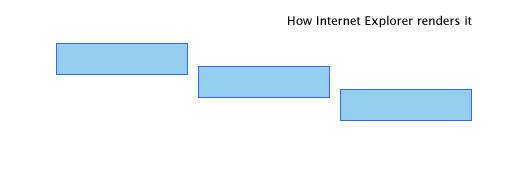
And the IE screen shot:
Tutorial Image
Not a particularly pleasing navigation if you ask me. Fortunately, there are 2 fixes you can try.

Fix #1

The easiest way to combat this is to float the li elements themselves instead of the anchor elements. Just add this and you should be done.
  1. ul li {  
  2.     floatleft;  
  3. }  

Fix #2

The second way is to apply display: inline to the enclosing li element. In addition to fixing this bug, it also fixes the double margin bug mentioned below. Purists may not like placing block elements inside inline elements though.
  1. ul li {  
  2.     displayinline  
  3. }  

3. Double Margin on Floated Elements

This bug is probably among the first ones a web developer starting out will run into and is specific to Internet Explorer 6 and below. Triggering it is as simple as floating an element and then applying a margin in the direction it has been floated. And voila! The margin will be doubled in the rendered output. Not really something you’d look forward to while creating a pixel perfect layout.
Consider this code:
  1. #element{  
  2.     background#95CFEF;  
  3.     width300px;  
  4.     height100px;  
  5.     floatleft;  
  6.     margin30px 0 0 30px;  
  7.     bordersolid 1px #36F;  
  8. }  
On standards compliant browsers, this is how it looks:
Tutorial Image
But here is how IE 6 decides to render it:
Tutorial Image

The Fix

The fix for this specific bug is to apply display: inline to the floated element and everything works as it is supposed to. Our previous code now changes to:
  1. #element{  
  2.     background#95CFEF;  
  3.     width300px;  
  4.     height100px;  
  5.     floatleft;  
  6.     margin30px 0 0 30px;  
  7.     bordersolid 1px #36F;  
  8.     displayinline;  
  9. }  

4. Inability to Have Elements with Small Heights

As part of creating a layout, you may need to create elements with very small heights as custom borders for elements. Usually, you’ll just have to add height: XXpx to the style’s declarations and you should be done. Or so you thought. Check the page in IE and you’ll probably do a double take.
As an example, look at the following code:
  1. #element{  
  2.     background: #95CFEF;  
  3.     border: solid 1px #36F;  
  4.     width: 300px;  
  5.     height: 2px;  
  6.     margin: 30px 0;  
  7. }  
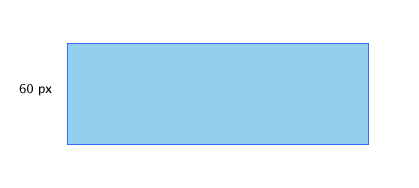
And the output is just as expected: A 2 px element with a 1 px border.
Tutorial Image
And in IE:
Tutorial Image

Fix #1

The cause of this bug is pretty simple: IE simply refuses to size an element smaller than the set font size. Simply setting the font size to 0 lets you have an element as small and short as you like.
  1. #element{  
  2.     background: #95CFEF;  
  3.     border: solid 1px #36F;  
  4.     width: 300px;  
  5.     height: 2px;  
  6.     margin: 30px 0;  
  7.         font-size: 0;  
  8. }  

Fix #2

The next best way to deal with this bug is to apply overflow: hidden to the element so it collapses to the intended height.
  1. #element{  
  2.     background: #95CFEF;  
  3.     border: solid 1px #36F;  
  4.     width: 300px;  
  5.     height: 2px;  
  6.     margin: 30px 0;  
  7.         overflow: hidden  
  8. }  

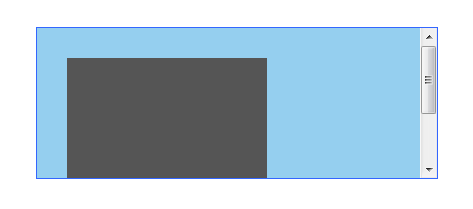
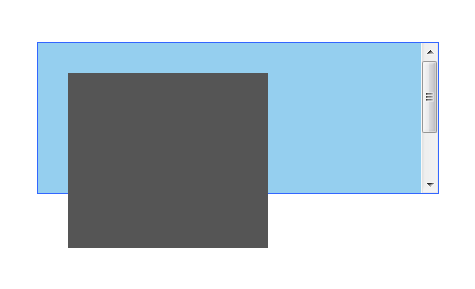
5. Auto Overflow and Relatively Positioned Items

This bug rears its ugly head when in a layout you set the parent container’s overflow property to auto and place a relatively positioned item inside it. The relatively positioned item violates its parent element’s boundaries and overflows outside. Let me demonstrate. Look the following code:
  1. <div id="element"><div id="anotherelement">div>div>  
  1. #element{  
  2.     background#95CFEF;  
  3.     bordersolid 1px #36F;  
  4.     width300px;  
  5.     height150px;  
  6.     margin30px 0;  
  7.     overflowauto;  
  8. }  
  9.   
  10. #anotherelement{  
  11.     background#555;  
  12.     width150px;  
  13.     height175px;  
  14.     positionrelative;  
  15.     margin30px;  
  16. }  
And the expected output:


Tutorial Image
And IE’s output:
Tutorial Image

The Fix

The easiest way to fix this annoying bug is to just position the parent element relatively too.
  1. #element{  
  2.     background#95CFEF;  
  3.     bordersolid 1px #36F;  
  4.     width300px;  
  5.     height150px;  
  6.     margin30px 0;  
  7.     overflowauto;  
  8.         positionrelative;  
  9. }  

6. Fixing the Broken Box Model

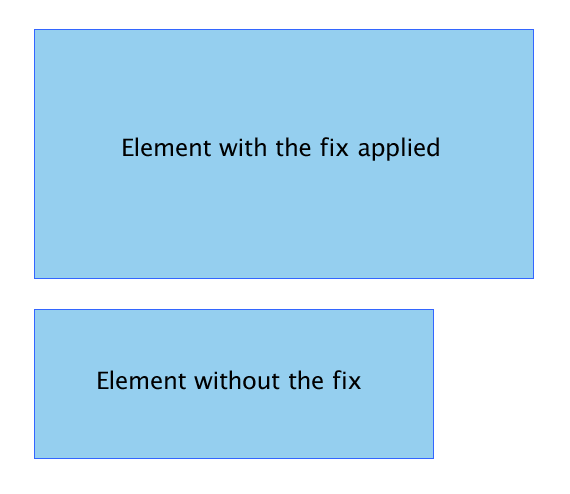
Internet Explorer’s misinterpretation of the box model is perhaps its unforgivable mistake. IE 6 in semi-standards compliant mode sidesteps this but this issue can still be triggered by quirks mode.
Two div elements. One with the fix applied and one without. The difference in the width and height is the sum of the paddings applied on each side.
Tutorial Image

The Fix

I am sure the quandary with the box model needs neither explanation nor demonstration so I’ll just give you the fix.
The trick is to set the width normally for all standards compliant browsers, target IE5/6 alone and then feed it the corrected width. This is how you’d usually go on about:
  1. #element{  
  2.     width400px;  
  3.         height150px;  
  4.     padding50px;  
  5. }  
This now changes to:
  1. #element {  
  2.     width: 400px;  
  3.     height: 150px;  
  4.    \height: 250px;  
  5.    \width: 500px  
  6. }  
Essentially, you add the padding to the original width and feed it to IE 6. The fix targets IE 6 in quirks mode alone so you need not worry about IE 6 in normal mode messing things up.

7. Setting a Minimum Width and Height

Setting an minimum height to an element is absolutely imperative when trying to convert a beautiful design into a pixel perfect design. Unfortunately, IE completely ignores the min-height property instead taking the height declared as the minimum height.

Fix #1

The fix is a hack created by Dustin Diaz. It utilizes the !important declaration to make it work. The snippet looks like so:
  1. #element {  
  2.   min-height:150px;  
  3.   height:auto !important;  
  4.   height:150px;  
  5. }  

Fix #2

The second way is to take advantage of the fact that IE can’t parse child selectors.
  1. #element {  
  2.     min-height150px;  
  3.     height150px;  
  4. }  
  5.   
  6. html>body #element {  
  7.     heightauto;  
  8. }  

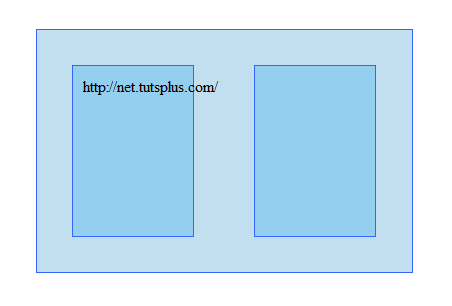
8. Floated Layout Misbehaving

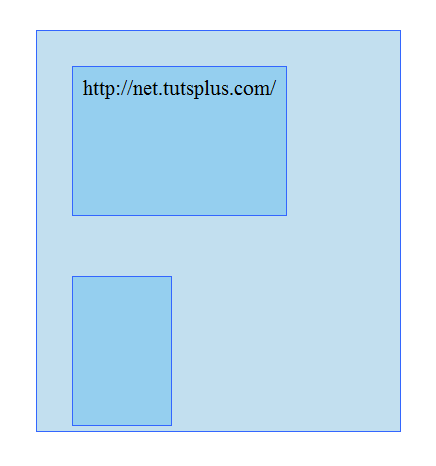
One of the important concepts of building table-less layouts using CSS is floating elements. In most cases, IE6 handles this with aplomb but in certain cases it fumbles. When faced with unbreakable content or elements whose width exceeds its parent’s width, it causes havoc with the layouts. Let me show you.
Consider this piece of code:
  1. <div id="container">  
  2.     <div id="element">http://net.tutsplus.com/div>  
  3.     <div id="anotherelement">div>  
  4. div>  
  1. #element, #anotherelement{  
  2.     background#95CFEF;  
  3.     bordersolid 1px #36F;  
  4.     width100px;  
  5.     height150px;  
  6.     margin30px;  
  7.     padding10px;  
  8.     floatleft;  
  9. }  
  10.   
  11. #container{  
  12.     background#C2DFEF;  
  13.     bordersolid 1px #36F;  
  14.     width365px;  
  15.     margin30px;  
  16.     padding5px;  
  17.     overflowauto;  
  18. }  
The expected output as viewed on a standards compliant browser:
Tutorial Image
In IE:
Tutorial Image
As you can see, the first div expands itself to fit the content which ultimately breaks the layout.

The Fix

There is no elegant fix for this bug. The only way to save the layout is to apply overflow: hidden to the element but at the cost of clipping the unbreakable content. The layout will be saved but the extra content won’t.
  1. #element{  
  2.     background#C2DFEF;  
  3.     bordersolid 1px #36F;  
  4.     width365px;  
  5.     margin30px;  
  6.     padding5px;  
  7.     overflowhidden;  
  8. }  

9. Space Between List Items

IE 6 adds vertical spacing even none is specified in specific cases. Let’s look at the code first.
  1. <ul>  
  2.  <li><a href="#">Link 1a>li>  
  3.  <li><a href="#">Link 2a>li>  
  4.  <li><a href="#">Link 3a>li>  
  5. ul>  
  1. ul {  
  2.     margin:0;  
  3.     padding:0;  
  4.     list-style:none;  
  5. }  
  6.   
  7. li a {  
  8.     background#95CFEF;  
  9.     displayblock;  
  10. }  
What it should look like:
Tutorial Image
What IE gives us:
Tutorial Image
Fortunately, there are a plethora of fixes you could try.

Fix #1

The easiest way out is to just define a width for the anchor tags and voila! everything renders as it should. Declaring a width triggers the element’s IE specific hasLayout property. You could instead define a height if you want to.
  1. li a {  
  2.     background#95CFEF;  
  3.     displayblock;  
  4.         width200px;  
  5. }  

Fix #2

The next method is to just float the anchor left and then clearing it.
  1. li a {  
  2.     background#95CFEF;  
  3.     floatleft;  
  4.         clearleft;  
  5. }  

Fix #3

The third method is to add display: inline to the enclosing li element. This also fixes the double margin bug as noted above.
  1. li {  
  2.     displayinline;  
  3. }  

Conclusion

And there you have it: the nine most common IE rendering bugs, and how to squash them. Hopefully this has saved you some blood, sweat and tears while debugging your next creation. I’ll be watching the comments section frequently; so chime in here if you are having difficulties implementing the fixes noted here.